

Copying a Supabase project is different from transferring it
You already have a working foundation. Now you need a demo, an independent version or a starting point for another project. Rebuilding every table, policy and bucket can mean repeating work you have already done.
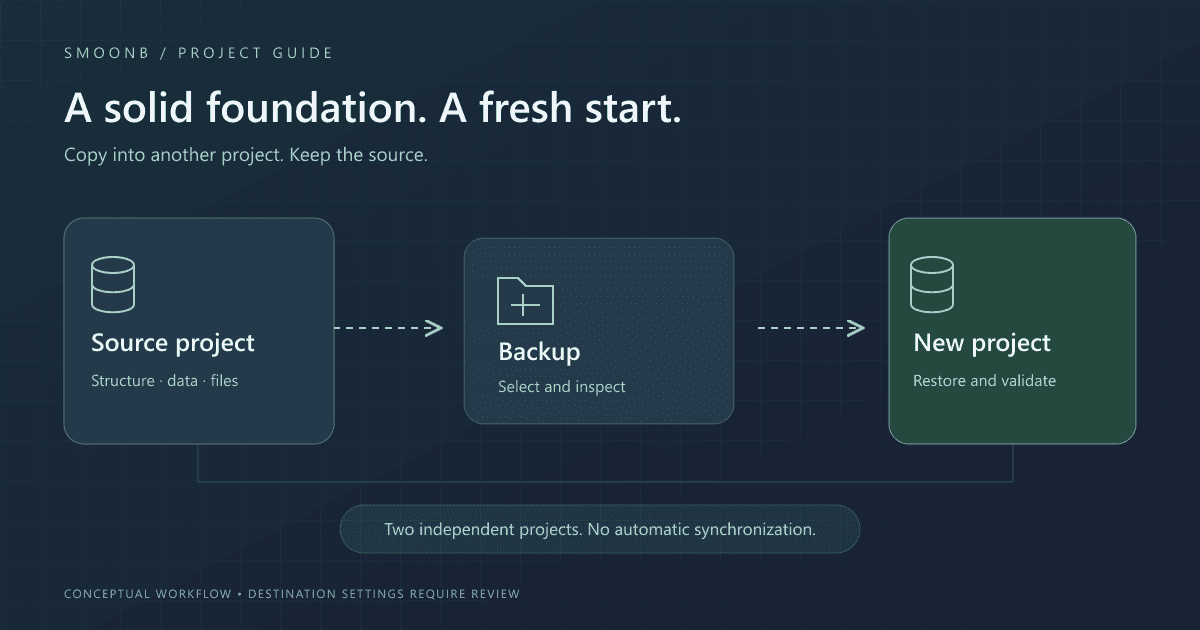
Prepare a source backup, create an empty destination project, restore the included components and validate settings and access before connecting the application. The source still exists; the copy does not stay automatically synchronized with it.
If you only need to change the organization that owns the same project, Supabase already offers project transfers between organizations. To create another database, there is also a native restore-to-new-project option, with its own requirements and a database-only scope. Storage files and other configuration require additional work.
Smoonb provides a way to organize the backup-and-restore workflow, bringing together the available artifacts for moving a foundation into another destination. The right choice depends on what you need to copy and how you want to verify it.
When an independent copy makes sense
Reuse a foundation
Start another project from a familiar structure, reviewing rules and data for the new context.
Prepare a demo
Create a separate database with test data, without relying on the original application’s database.
Explore a new version
Evaluate changes in an independent project with its own credentials and integrations.
For development environments integrated with your migration workflow, also consider Supabase Branching. A backup-based copy is a snapshot of the captured state, not a continuous synchronization mechanism.
What needs to come with the copy
“Copy the project” sounds like a single action, but it involves different parts. The database can be correct while the application still points to source files, services or redirects. Define the scope before restoring.
| Component | What to check in the backup | In the new project |
|---|---|---|
| Database | Schema, data and roles, depending on the backup steps completed. | Check tables, row counts, functions, extensions and access policies. |
| Supabase Storage | Files and metadata included in the Storage archive. | Check buckets, objects, permissions and downloads. A database dump alone does not contain the files. |
| Edge Functions and migrations | Code exported during the selected steps. | Review the code, deploy the required functions and configure secrets separately. |
| Auth and Realtime | Configuration exports, when available. | Use the files as a reference and apply settings manually in the Dashboard. |
| Application and external services | Not copied automatically by a Supabase backup. | Update URLs, keys, redirects, webhooks, email settings and destination environment variables. |
The contents depend on the selected options and the steps that finished without errors. See our Supabase backup checklist to check the artifacts before moving on.
How to prepare the copy with Smoonb
01Identify the source and what you want to reuse
Record the source project reference and choose the components you need. For a demo or a new application, prefer test data. Personal data, real user accounts and secrets should not be carried into another context just for convenience.
If the source is receiving writes, plan an appropriate window for a consistent baseline, including database and Storage consistency. This workflow does not promise a zero-downtime copy or simultaneous capture of every component.
02Create and inspect the backup
With Smoonb installed, the license configured and credentials pointing to the source, run the backup. Review the options and check the outcome of each step.
npx smoonb backupCheck the project, date, logs and generated files. Verify that the Storage archive contains the expected objects, and keep a copy of the artifacts before using any restore command.
03Create an empty, independent destination
Create the new project in Supabase and configure the destination in Smoonb with its corresponding credentials. Double-check the project reference: restoring writes into the selected destination. Do not point this process at the source or a project containing data you need to preserve.
Prepare Docker and the Supabase CLI for the restore, and check version and extension compatibility. Keep source and destination configuration files clearly separated.
04Restore and complete the configuration
Once you have confirmed the destination, start the restore and select the artifacts and steps supported by your backup. Read the results before proceeding.
npx smoonb restoreUse Auth and Realtime exports as a reference for manual adjustments. Review Edge Functions and their secrets. Redirects, login providers, external endpoints and application environment variables need to match the new environment.
Before making the copy available, review scheduled jobs, triggers, webhooks, email and billing services. A new destination can still call real systems if it carries old configuration. Use test credentials and recipients for validation.
05Validate before connecting the application
A completed command is only part of the check. Compare the restored contents, test access and only then update the application to use the new project URL and keys. The original application should keep pointing to the source.
Is the copy ready? Check these points
- Tables, row counts and test records match the chosen scope.
- RLS and permissions isolate ordinary users while preserving legitimate administrative access.
- Storage files open in the destination with the expected permissions.
- Login, password recovery and redirects use the correct addresses.
- Functions, secrets and integrations point to services appropriate for the new context.
- Jobs and webhooks have been reviewed before producing any external effects.
- The application uses the new project reference and keys, without relying on the source.
If you also want to organize your files while preparing the copy, see how to clean up Supabase Storage with backups and retention. Cleanup and copying are different operations: preserve the files you need before deleting anything.
Frequently asked questions about copying Supabase projects
Can I copy into another Supabase account?
The destination can be in another organization or account you are authorized to access. You need appropriate permissions and credentials on both sides. If you only need to change the organization of the same project, check the native transfer option first.
Does the copy include bucket files?
Only if those files were included in the backup and restored successfully. A database dump does not replace a backup of Storage objects. Check the file archive and test downloads in the destination.
Do I need to delete or transfer the original?
No. This workflow uses a backup and a new destination. It does not require deleting or transferring the source. Still, checking project references before restoring is essential: choosing the wrong destination changes the risk of the operation.
Can this help recover a paused project?
The situation is different when you only have the files provided by Supabase. In that case, follow the guide to recovering a paused Supabase project, which explains how to prepare those files for a new destination.
How does the Smoonb trial work?
The trial lasts five days from the creation of your first license, with no credit card required. Create your account, configure the CLI and use a test project to learn the workflow before working with an important database.