
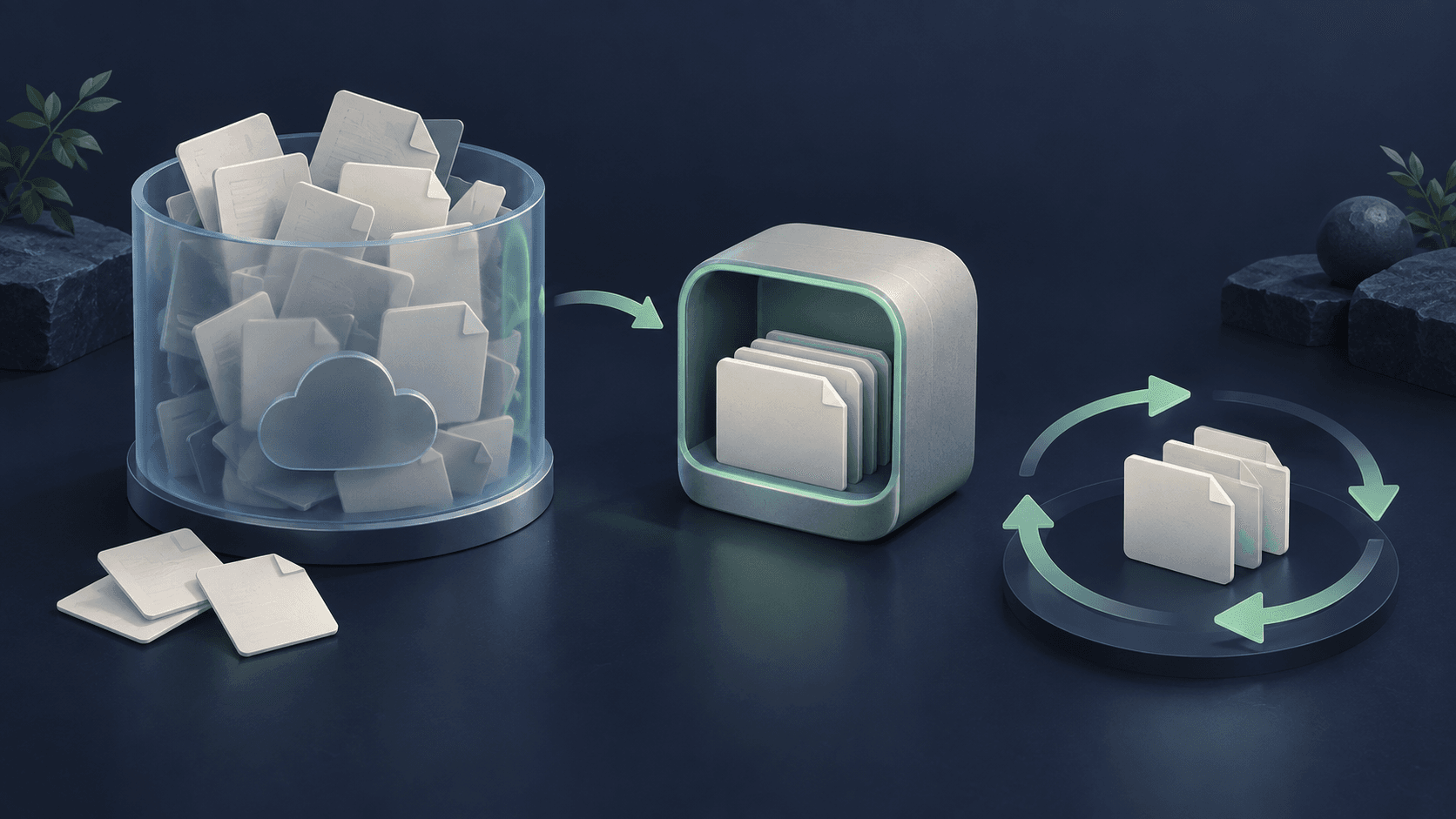
Have you ever opened the Supabase dashboard and wondered, “How did this bucket get so full?”
A test upload here. A new version there. Another export, another temporary file. Development moves on — and Storage keeps holding on to everything.
That happened in the development environment for Ponte App, which we are building for Clínica da Ponte. Files accumulated until the problem landed in our inbox.
The warning that moved cleanup off the “later” list
Supabase emailed us to say that the organization had exceeded its usage quota. The warning identified Storage size and advised reducing usage or increasing plan capacity.
Storage usage is above your plan’s quota. Review the usage dashboard and reduce stored data or adjust your plan capacity to avoid restrictions.
Review storage usageThe question changed from “When will we organize this?” to “What can we remove without losing anything we still need?”
The bucket held more than the application needed
In our case, development files were accumulating: test outputs, old versions, and artifacts from attempts we would no longer use. Each round left a little more behind.
Before cleaning up, we needed to separate files the application still referenced from those we could discard. An old file can still be necessary. A recent file can already be an unused temporary artifact.
More capacity can make sense when the product needs that space. For the unused files accumulating in this environment, we needed a maintenance policy.
Smoonb: a backup before you click delete
This is where Smoonb fits into the workflow. Having a backup tool ready helps you prepare for maintenance: preserve project content, check the saved files, and then decide what to remove.
Smoonb lets you include bucket objects in your backup. Check that this step completed and inspect the preserved files before proceeding with cleanup.
That detail matters: a Supabase database backup contains Storage metadata, but not the files uploaded to buckets. Images, documents, and other objects need to be preserved too.
When preparing a cleanup, keep your copy outside the set of files you will remove. Check that it contains what you need and plan how to restore it. Prepare your recovery option before deciding what to delete.
To review what your backup should cover, use our Supabase backup checklist.
Planning maintenance on your project?
Prepare your first backup with SmoonbFive days free from your first license. No credit card.How we kept files from piling up again
Cleanup freed space. To manage what would come next, we built a rotation routine into the application based on file usage and retention periods.
Files still in use
Anything the application still needs stays protected.
Abandoned temporary files
Files that have served their purpose enter the retention policy.
History without dependencies
Old versions can be removed only after checking whether they are still needed.
In simple terms: abandoned temporary files get an expiration policy; old versions with no references or dependencies become eligible for removal; files the application still uses remain. If the inventory is incomplete, the routine does not run the cleanup.
We built that rotation routine into the application. Smoonb handles backup preparation; the retention policy determines what can be removed. Both practices contribute to project maintenance.
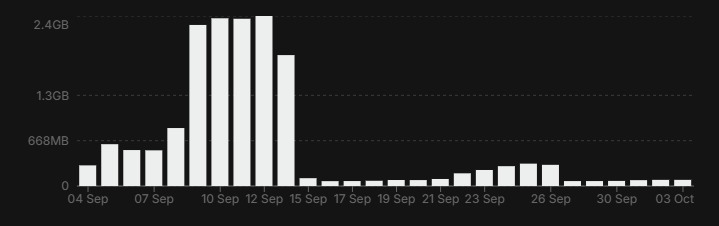
Space came back. The chart shows the change.
The chart below, shared by Alexandre, shows the usage trend in the dashboard: a period of growth, a drop following the cleanups, and lower usage in the next part of the timeline.
- Unused files were removed according to defined criteria.
- Content still needed by the application stayed protected.
- Retention became part of the application’s maintenance routine.
The lesson for the next project: prepare a backup before maintenance and decide what happens to temporary files from the start.
Questions about cleaning up Supabase Storage
Can I delete an entire bucket to free space?
Only do this after confirming that the application needs none of the files and that anything you must preserve is in a verified backup. In this case, cleanup was selective: files still in use were preserved. Storage object deletion is permanent.
Does Smoonb perform this rotation automatically?
The routine described here was built into the application we are developing. Smoonb is the backup and recovery tool you can use to prepare for project maintenance.
How do I start using Smoonb?
Create your account, generate your first license, and follow the CLI setup in the dashboard. Your free trial lasts five days from the creation of that first license, with no credit card required.